
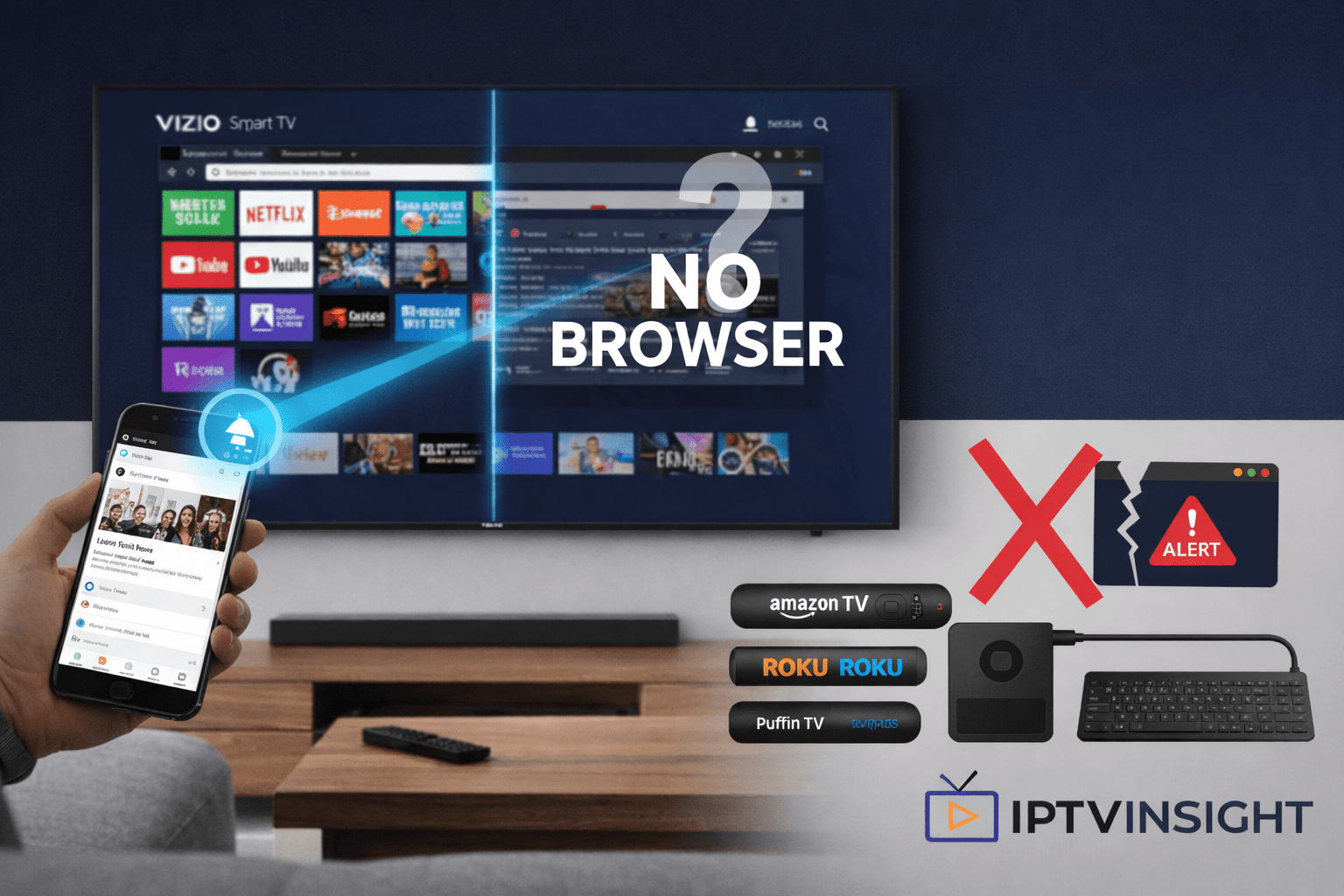
Vizio Smart TVs and Web Browsing
Vizio Smart TVs, including the latest 2025 models, operate on the SmartCast operating system, which is fundamentally focused on curated streaming applications like Netflix, Hulu, and YouTube.
- The Core Issue: Vizio Smart TVs do not include a native web browser.
- The Rationale: This is a deliberate design choice focusing on user-friendly content access and enhanced security. It aims to avoid the potential malware risks associated with open web browsing directly on the TV hardware.
- The Solution: To browse the internet, users must rely on effective workarounds, primarily involving casting or external streaming devices.
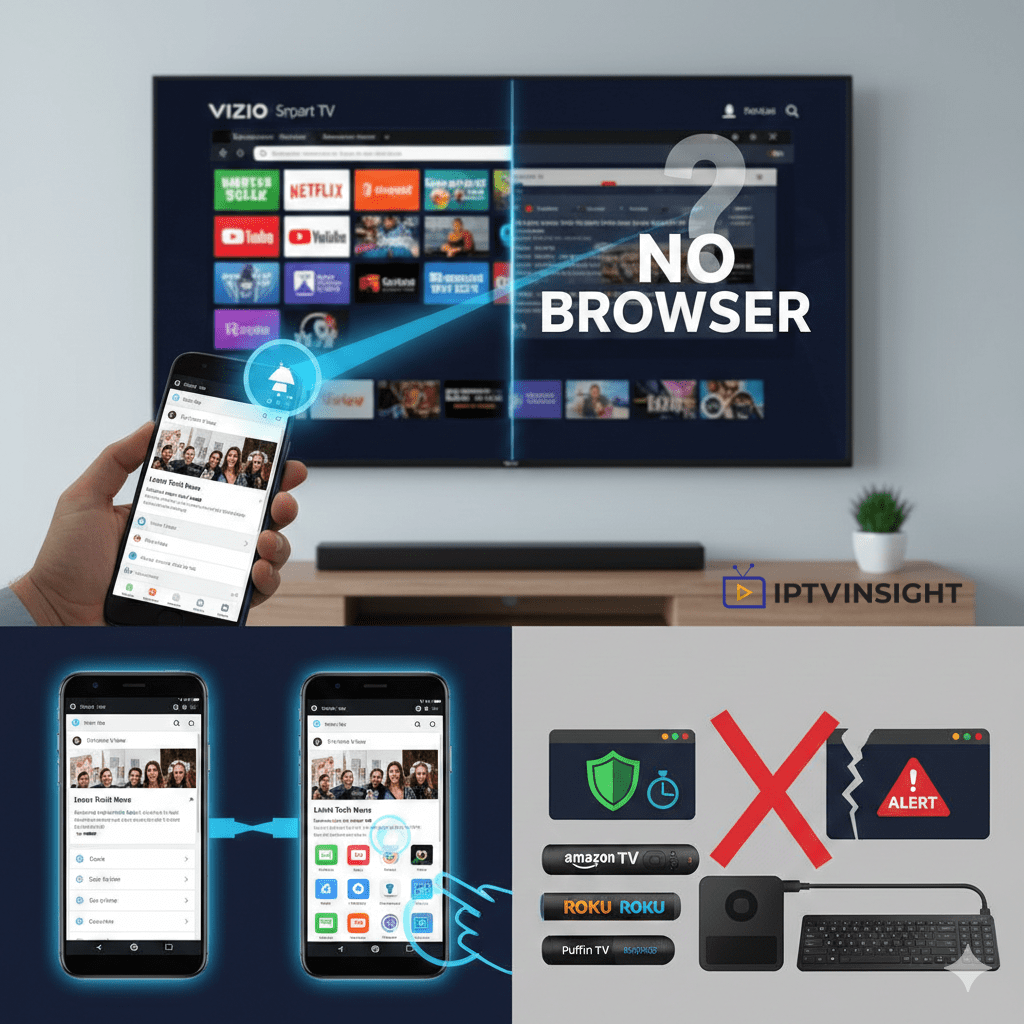
1. The Primary Method: Utilizing Casting Capabilities
Casting is the simplest and most integrated method, allowing you to send content from your phone, tablet, or computer directly to the TV screen.
- Chromecast (Google Cast) Support:
- Vizio TVs have included built-in Chromecast support since 2016, integrating Google’s casting technology.
- How-To: Open a web page in your browser on your phone or computer, and then tap/click the Cast icon to select your Vizio TV as the output device.
- AirPlay (Apple Devices) Support:
- For Apple device users, Vizio TVs also support AirPlay.
- How-To: Use the Control Center on your iPhone or iPad to select the TV as the output device. This allows seamless casting of web content from Safari or other compatible apps.
Note: Casting is designed to send specific content (like a video or a web page) from the device to the TV.
Solution: Casting and the “Browser Compatibility” Factor
Casting remains the simplest method, built directly into Vizio TVs since 2016 (Chromecast) and supporting AirPlay (Apple).
| Feature | Casting (Recommended) | Screen Mirroring |
| How it Works | TV pulls content links directly from the internet. | The TV displays a live feed of your device’s screen. |
| Resource Use | Efficient (phone battery usage is lower). | High (requires constant processing on the phone). |
| Latency/Lag | Very low (best for video). | Moderate (can cause choppy scrolling). |
Advanced Tip: Optimize Your Casting Browser
When casting from a PC or laptop using Google Chrome:
- Prioritize Chrome: Chrome is optimized for Google Cast technology, ensuring the best sync and least latency.
- Close Unused Tabs: If you are casting a full browser tab, close all other background tabs to dedicate more system resources to the casting process, ensuring smoother scrolling.
2. The Full Display Solution: Screen Mirroring
Screen Mirroring is essential when you need the TV to function exactly like a large monitor for your device.
- Best Use Case: Complex websites, filling out forms, or development work where you need constant, immediate feedback from your input device.
- Control Center (Apple Users): AirPlay acts as both a casting and mirroring tool. Selecting Screen Mirroring from the Control Center sends the entire iPhone/iPad display to the Vizio TV.
- Android Users: Use built-in features like Smart View or Cast (device dependent) found in your Quick Settings panel.
Cursor Control: When screen mirroring, you must control the cursor and input directly on your phone or computer.
Quick Tips to Optimize Vizio TV Web Browsing
To ensure a smooth and comfortable experience when browsing the internet via casting or external devices on your Vizio TV, follow these quick optimization tips:
Adjust Browser Zoom/Scaling: Text can appear too small on large screens. Increase the browser’s zoom percentage (e.g., to 125% or 150%) to improve readability and reduce eye strain from a distance.
Keep Tabs to a Minimum: Opening just a few tabs ensures smoother performance and fewer crashes. Close unnecessary tabs on your source device before starting to cast.
Use a Wireless Keyboard & Mouse: A compact wireless keyboard (ideally with a touchpad) makes browsing much faster and more comfortable than relying on a remote or phone screen.
3. The Power User Solution: Dedicated External Devices
For users who want a “true” browsing experience—complete with mouse/keyboard support and an interface designed for the TV—an external streaming device or computer is the definitive answer.
| Device Type | Primary Browser | Key Advantage |
| Amazon Fire TV Stick | Silk Browser | Designed for TV remote input; supports basic web standards. |
| Roku Devices | Puffin TV Browser (or similar) | Specialized browser apps available in the Channel Store. |
| Android TV Boxes | Google Chrome/Firefox | Full desktop browser experience; allows external USB keyboard/mouse connection. |
| Mini PCs or Laptops | Any Standard Browser | Unrestricted access; ideal for heavy multitasking and complex web applications. |
Connecting any of these devices via an available HDMI port is the only way to achieve a user experience comparable to browsing on a desktop computer.
Screen Mirroring for a Complete Web Experience
Screen mirroring is different from regular casting. Instead of showing only one app or video, it displays your entire phone or computer screen on the TV. This makes it much better for full web browsing, clicking links, scrolling pages, and switching between tabs.
On Android Phones:
Open the quick settings menu and tap Cast or Smart View to mirror your screen to the Vizio TV.
On Laptops or PCs:
Web browsers like Google Chrome let you mirror your whole desktop, allowing you to browse the internet on your Vizio TV just like on a computer.
FAQs
Does Vizio TV Have a Built-in Web Browser?
No. As of 2026, Vizio Smart TVs (SmartCast OS) do not support native web browsers like Chrome or Firefox.
Vizio focuses on streaming apps instead of traditional web browsing.
Is browsing safe on Vizio TV?
Yes, if you use trusted devices and secure Wi-Fi.
Does Vizio TV support Chromecast?
Yes. Vizio TVs have Chromecast built-in, allowing you to cast web pages, videos, and apps from supported devices.
Can I use a keyboard and mouse with my Vizio TV?
Only if you are using an External Streaming Device connected to the TV. Vizio’s native SmartCast system does not support external keyboard and mouse accessories.
What is the best method for a true browser experience?
Use an External Streaming Device (like an Amazon Fire TV Stick or Android TV Box) plugged into an HDMI port. These devices allow you to download dedicated web browser apps.